Installation
Prerequisites
- NinjaTrader 8 installed and running on your machine.
Step 1 — Open the NinjaScript Import dialog
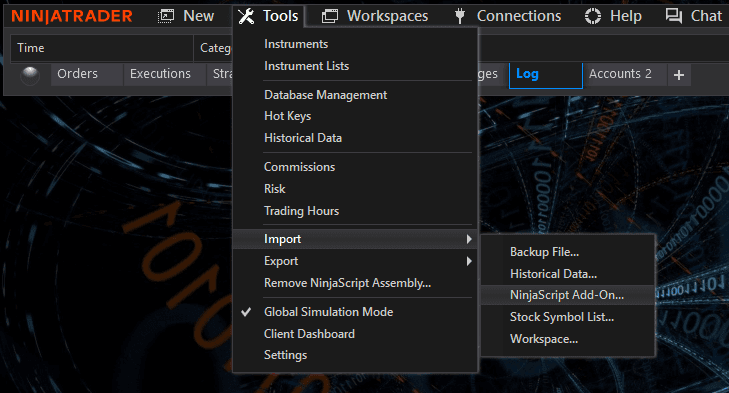
From the NinjaTrader Control Center, select Tools → Import → NinjaScript Add-On…
Step 2 — Select the add-on package
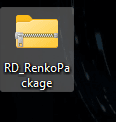
In the file picker, choose RD_RenkoPackage_v1003.zip and confirm the import.
Step 3 — Restart NinjaTrader
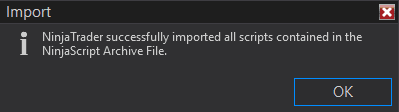
Once the success confirmation appears, restart NinjaTrader so the new bar type and indicators load on startup.
Step 4 — Select the RD Renko bar series
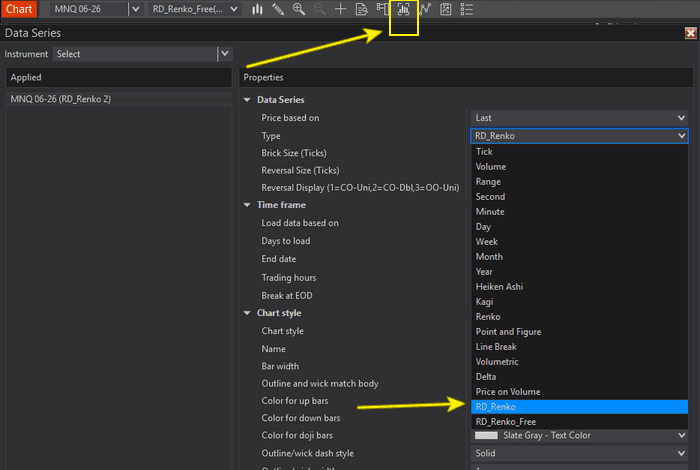
Open a chart's Data Series window (press Ctrl+F or click the highlighted icon on the toolbar), then choose RD_Renko from the bar type list.
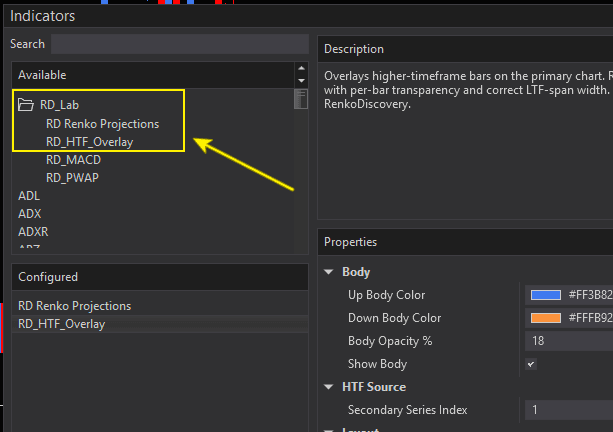
Note: The companion indicators — RD Renko Projections and RD_HTF_Overlay — are installed under the RD_Lab folder in NinjaTrader's indicator list.
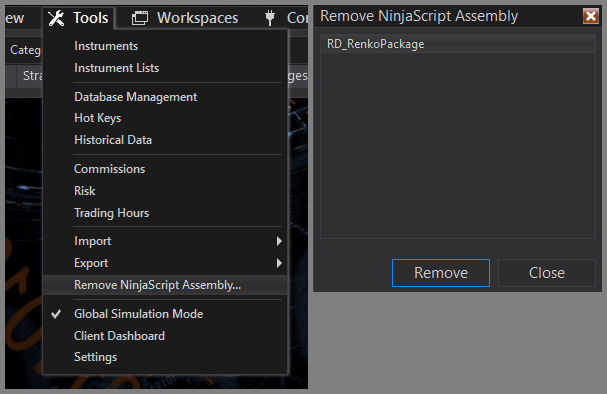
Uninstall
To remove RD Renko, open the NinjaTrader Control Center and select Tools → Remove NinjaScript Assembly…, then select the RD Renko assembly in the dialog and confirm.